Text-to-Image vs. Image-to-Image: Which AI Editing Workflow is Right for You?
Learn the difference between text-to-image and image-to-image AI workflows, when to use each, and how to combine them for faster creative output.
 EditOne Team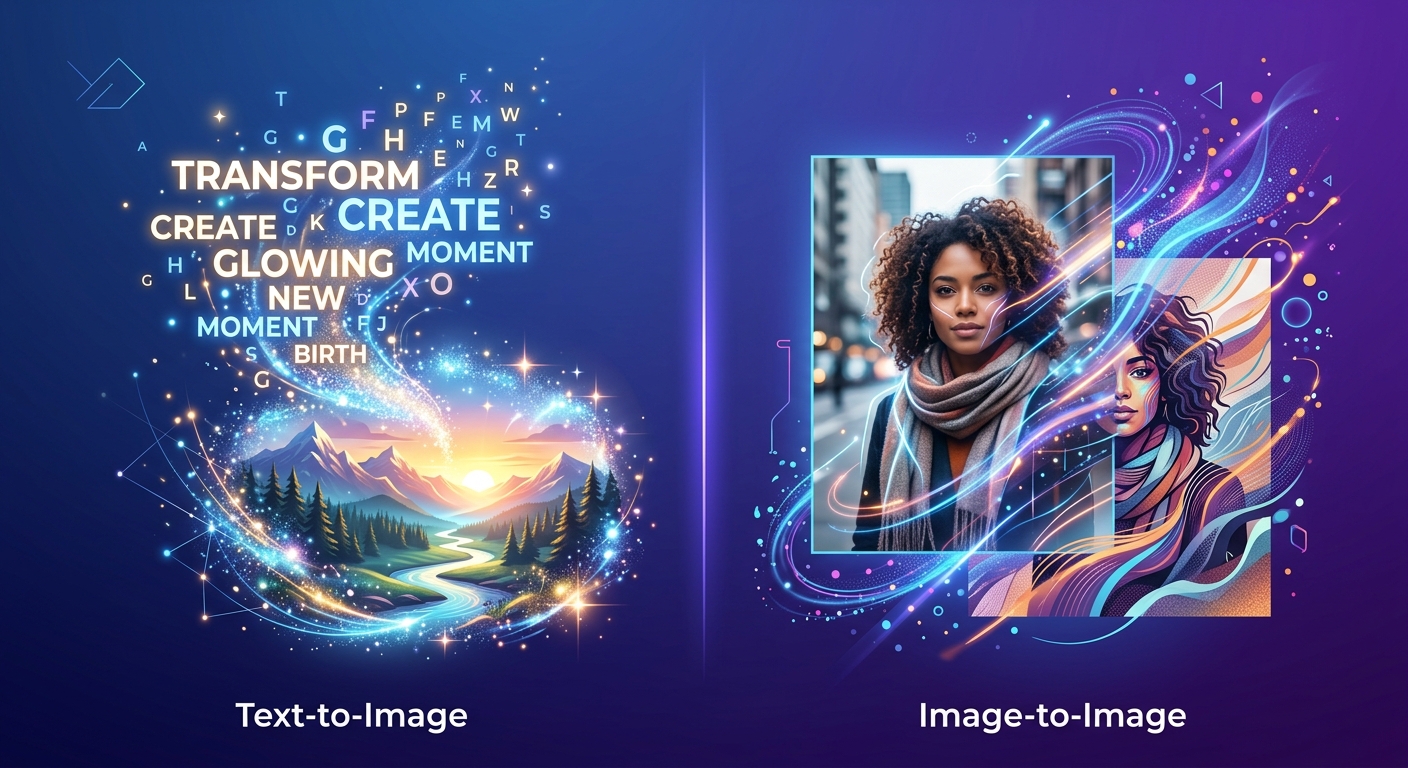
Modern AI image tools offer two main ways to create visuals: you can describe an idea from scratch, or you can hand an existing image to the AI and tell it what to change. These two approaches are called text-to-image and image-to-image, and choosing the right one can save you hours of trial and error.
This post explains how each workflow works, what it's best for, and how to move between them inside a tool like EditOne.
What is text-to-image?
Text-to-image generation takes a written description — called a prompt — and creates a brand-new image from it. You type something like "a minimalist desk setup with a plant and warm natural light," and the AI returns a matching image.
This workflow is ideal when:
- You start from a blank canvas and need original visuals
- You want to explore many variations of a concept quickly
- You need stock-photo alternatives without licensing concerns
- You're creating illustrations, concept art, or social graphics
The quality of the output depends heavily on the prompt. Specific details about style, lighting, mood, composition, and subject help the model match your vision. Even then, you may need several attempts to get exactly what you want.
What is image-to-image?
Image-to-image editing starts with a photo or graphic you already have. You upload it, then describe what you want changed: "make the background a beach at sunset," "turn this sketch into a 3D render," or "change the jacket color to navy." The AI uses your original image as a guide while applying the transformation.
This workflow shines when:
- You want to keep the subject or structure of an existing photo
- You need to retouch, restyle, or recontextualize product images
- You're adapting real photos for marketing campaigns
- You want controlled changes rather than a completely new generation
Image-to-image gives you more control because the composition, pose, or overall scene is already locked in. The AI focuses on changing what you ask for instead of inventing everything.
Head-to-head comparison
| | Text-to-image | Image-to-image | | ------------------- | ------------------------------------------ | ------------------------------------------ | | Starting point | Empty canvas, prompt only | Existing photo or graphic | | Best for | Original concepts, mockups, illustrations | Editing, retouching, restyling real images | | Control level | Lower — AI invents composition and details | Higher — original structure is preserved | | Iteration speed | Fast for many variations | Fast for targeted changes | | Common use case | Hero images, social posts, storyboards | Product photos, portraits, creative edits |
How to combine both workflows
The two modes are not mutually exclusive. Many creative projects use both in sequence:
- Generate a base with text-to-image. Use a detailed prompt to explore styles and pick a strong starting image.
- Refine with image-to-image. Upload your favorite result and make targeted changes — adjust colors, swap backgrounds, or upscale details.
- Polish with specialized tools. Remove small artifacts, crop, sharpen, or export in high resolution.
This loop gives you the spontaneity of generation plus the precision of editing.
Prompt tips for each workflow
For text-to-image, be specific:
- Subject: "a ceramic coffee cup on a wooden table"
- Style: "soft product photography, shallow depth of field"
- Lighting: "morning sunlight from the left"
- Mood: "calm, warm, minimalist"
For image-to-image, focus on change:
- "Keep the person, replace the background with a modern office"
- "Same composition, cyberpunk color grading, neon reflections"
- "Turn this photo into a watercolor illustration"
The clearer you are about what should stay and what should change, the better the AI performs.
Which one should you use?
Use text-to-image when you need something new and don't have a source photo. Use image-to-image when you already have a visual asset and want to adapt it. If you're unsure, start with text-to-image to explore ideas, then switch to image-to-image once you find a direction worth refining.
Try both workflows in EditOne
EditOne supports both text-to-image generation and image-to-image editing in one place. Whether you're creating visuals from a description or transforming an existing photo, you can iterate quickly and export high-resolution results without installing anything.